

All Groups
by Group Number

Visual Ancestor strives to continually improve your experience.

My Groups
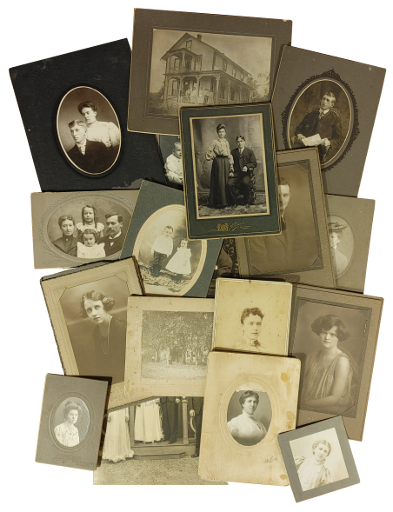
A group is a collection (or container) of photographs and other artifacts that share a common element or trait. Use different groups for photographs from different boxes, for example, or from different sources, or from different parts of your family. A group captures and preserves contextual meta-data about the items in it.
 My Groups

You may browse from all public groups listed in the left pane, and when you select one, its contents will appear here in the Group Viewer. For members who are logged in, your own groups (if you have created any) will be listed right above this instruction as well as a button to create a new group. The same list of a member's groups also appears toward the bottom of your member profile.
 Video Content

|
Click to hide (or show) video content...
|
Instructions on Creating a Group
In this video, we explain how to create a group covering what a group is and what role it serves. This sets the foundation to archive photographs and related artifacts into one.
!! Videos on YouTube only work when "Allow All" cookies is chosen. To honor your choice, we have disabled this feature. !!
You may visit the Terms of Service page to change your cookie preference.
You may visit the Terms of Service page to change your cookie preference.

|
Click to hide (or show) transcript of video...
|
Welcome to Visual Ancestor. And in this instruction video, I'm going to show you how to create a group, which is the beginning process of how to archive photographs. First of all, I'm not the very best explainer, so I apologize if I'm a little hard to follow. It's I'm just not good at this. But I will do the best I can for you. Creating a group is the first step in the process of archiving photos because when we archive photos, which means uploading them into the library, we need a place that they go into and that is a group. A group is kind of like a container that holds our photographs and we can have many groups for different purposes. But the main purpose of having a group or having this organizational structure is to preserve any type of commonality among your photographs that you're going to archive and upload. That metadata, things that all those photos share together, is really important to preserve. And that metadata can be something like, well, all of these photographs that I'm archiving, they all came from the same box, or they were all found in grandma's attic, or I I got this box from an estate sale or um you know, a um a flea market and they're all kind of lumped together. So maybe there's some relationship among these photographs and that relationship, that metadata is important to preserve. That's why we create groups, which are kind of like containers. And then we're going to archive or upload our photos into those groups. You probably got here to the create a group page. Um, well, one of various ways, but the main way is when you log in and you're presented with your start page and all of your action tiles. The very first tile here is called archive photos. So, if you press that that button, that that link, you're going to be brought to what is kind of like the foundational step in archiving photos, which is to create a group. Now, if you already have a group, which I do in this account, let me show you by dropping down the pancakes at the top right, and I'll select groups. I have one group under members groups. So, I already do have one existing group. So, if you have an existing group, you can add photos to that group any time simply by clicking it and going into it, which is not what we're going to do here. Instead, we're going to create a new group. So, to do that, we just enter um just a little bit of information here, and we're just going to press the button create group, and we're done. So, the first thing that we put here is the group name. And the group name can be any type of like short descriptive name that just characterizes the group. So let's let's make pretend that I found a box of photographs in my father's attic. So I'm just going to call this group um father's side. You can put a description, but you don't have to. So, I'll just say um from a box of photos found in um my father um my father's attic. Inscriptions are any writings that are part of the group, not inscriptions on the photographs in the group. This would be inscriptions that pertain to the entire group. So, let's just say that this box of photos that were found in my father's attic um had some sort of writing on it and the writing is from like um my uh from my parents parents that is the inscription that someone wrote on that box. So, notice that the inscription is written on the box of photos. Therefore, the inscription pertains to this entire group. So, I know that one of the common traits that those photos probably share is that they're all from my father's parents family and and that's important to capture. Now, I can go ahead and create the group right now, but let me just give you an overview of the privacy and access settings here. So, by default, a group is set to public, which means that anyone in the library um can come and browse the photos that you're uploading. And that's the point if you want to preserve and to pass on your photos to future generations, your descendants, or other people that are related or interested in them. So, most likely, you want to keep it to public, if not intended to be public someday. Now, if you drop this down, you can set it to private if you wish. If you set it to private, you can optionally set a passcode and you can share that passcode with other people you want to grant access to your private group. Lastly down here, if for some reason you want your group to be initially private for some period of time, say five years, 10 years, but if you're unable to come back and log in, you don't want that group to just kind of disappear and just kept locked away forever. You might want that group someday to kind of like transition over to become public. And for that you can specify a privacy expiration date. Some date in the future that if you choose your group to be private at that date will be converted over to public. So that's a nice option. So we're going to keep it to public. And now since we're all done with these settings and adding the text in here, I'm going to go ahead and press create the group. So now since the group is created, I'm presented with the group profile page for that group. And this is going to have its own like instruction video. But just as a little sneak peek here, uh we see that the group has been assigned a number. It is group 20033 at the top. Since it's my group, I'm the owner of it. I have a group control panel at the top. I can edit, delete the group. I can create a new group. That's a new group apart from this. That's not a group and a group. There's no such thing as a group in a group. Or I can add photos into this group. Here is information about the group. Little explanation of what a group is. Um if this group contained a photo album, um that information would be um captured here. and then any of the group photographs uploaded into the group would show here in a list of thumbnails. So that's pretty much it for creating a group. You are now ready to archive photos which basically means upload them into this group and capture the information from the actual photographs. One more thing in conclusion, this group is now created and it is public. So right here I see that the access is public. That means that it is now listed in the master list of groups for the library and I can see that list by going to the top right and dropping down the pancakes and choosing the option groups. And then over here on the left hand side I get the master list of all groups in the library. And 2000 um three uh two was it? I forgot. Uh oh, it's actually right here. Father side is 33. 20033 is now listed among the groups. So if I click 20033, I am now brought back to the group's profile page. Thanks so much and have fun.
Notes
Notes about Group Numbers
A group is assigned and identified by a 5-digit number (for example, group 10038) which then becomes the first part of the name of any photograph uploaded into the group. Each photograph uploaded into a group is assigned and identified by a 3 to 4-digit number (for example, photograph 104) which, when combined with the group number, creates a photograph's full name (for example, 10038-104).
A group is assigned and identified by a 5-digit number (for example, group 10038) which then becomes the first part of the name of any photograph uploaded into the group. Each photograph uploaded into a group is assigned and identified by a 3 to 4-digit number (for example, photograph 104) which, when combined with the group number, creates a photograph's full name (for example, 10038-104).
Visual Ancestor's Cookie Policy
Visual Ancestor uses cookies to make our website work and to learn about you in a non-intrusive way. We also use third-party services like Google Analytics, YouTube, and PayPal. Our carefully chosen cookies allow us to give you the best possible experience.
We honor your privacy and right to choose among the following preferences. Learn more by reading our Cookie Policy within our Terms of Service (defaults to essential only). Clicking the "x" to close this notice also accepts all.
We honor your privacy and right to choose among the following preferences. Learn more by reading our Cookie Policy within our Terms of Service (defaults to essential only). Clicking the "x" to close this notice also accepts all.